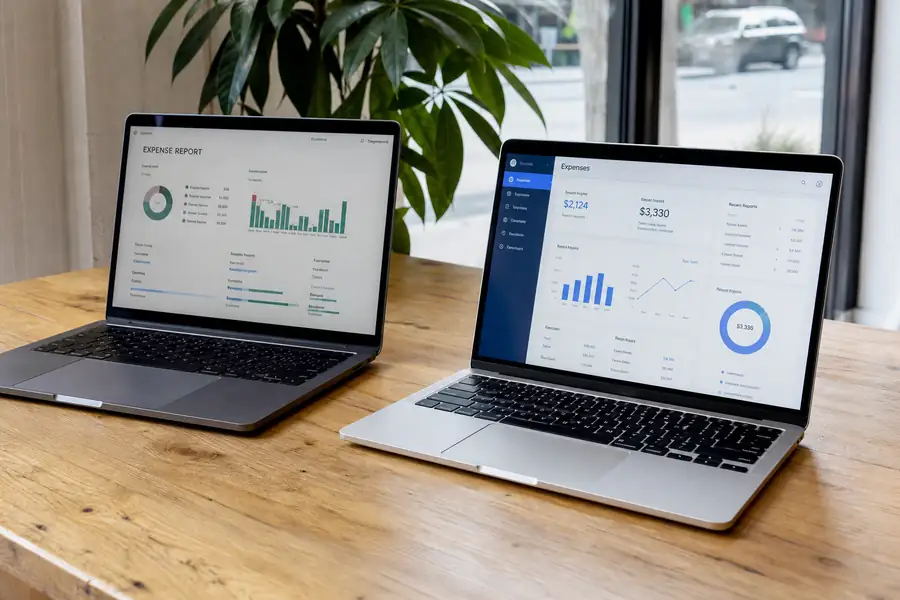
Expense management automation replaces manual receipt collection, spreadsheet coding, and paper expense reports with software that captures spend as it happens, codes it to the right account or job, and syncs it directly to your accounting system. Instead of an employee saving receipts for a monthly report and a bookkeeper re-entering every line, the software handles capture, coding, and sync on its own, usually the same day the transaction happens.
For finance teams still running expenses through spreadsheets or email chains, that shift changes both the workload and the timeline. Transactions get coded and reconciled as they occur instead of once a month, which is why automated expense management is spreading fastest among companies with field crews, multiple properties, or distributed teams who cannot wait for a paper trail to catch up.
Key Takeaways
- Real-time capture: receipts and card transactions get logged the day they happen, not weeks later.
- Automatic coding: rules assign GL accounts, jobs, or cost centers instead of a bookkeeper guessing later.
- Direct accounting sync: coded transactions push into your books, so nobody re-keys data.
- Built-in approvals: spend routes to the right manager without emailing PDFs back and forth.
- Field teams benefit most: a crew member snaps a photo instead of filing a report weeks later.
- The right setup depends on your workflow, not how many features a vendor lists.
What Is Expense Management Automation?
Expense management automation is software that handles the capture, coding, approval, and accounting sync of business spend without manual data entry at each step. It covers company card purchases, employee reimbursements, and vendor bills, and it works by applying rules the finance team sets up once, instead of a person repeating the same judgment call on every transaction.
Two terms explain most of the value. Real-time sync means a transaction shows up in your accounting system the same day it happens, not after a batch upload weeks later. GL coding means assigning a transaction to the correct general ledger account, job, or cost center, the step that used to eat the most bookkeeper time. If you are new to the category, this guide to small business expense management software covers the moving parts in more depth.
How Automated Expense Management Actually Works
Automated expense management runs on four connected steps, and skipping any one of them is what leaves a company still doing manual work despite paying for software.
- Capture: an employee photographs a receipt on their phone, or a company card transaction posts automatically, with no spreadsheet entry required.
- Coding: rules assign the transaction to a GL account, job, client, or property based on the merchant, amount, or card used.
- Approval: the transaction routes to the right manager based on amount or category, and they approve or flag it from a phone.
- Sync: the coded, approved transaction posts to the general ledger automatically, with the original receipt attached for the audit trail.
The technology behind capture has improved fast over the last few years, mostly because optical character recognition (OCR, the technology that reads text from a photographed receipt) and rule-based coding got reliable enough to trust without a human double-check on every line. That shift, and where the category is heading next, gets covered in more detail in this look at expense management software technology trends.

What Changes for Field Teams and Multi-Location Businesses
Expense management automation matters most where spend happens away from a desk. A construction crew buying materials at three different suppliers in one afternoon cannot wait until Friday to remember which job each receipt belongs to, and a property manager covering repairs across a dozen units needs every charge split and tagged to the right property automatically, not sorted out later from memory.
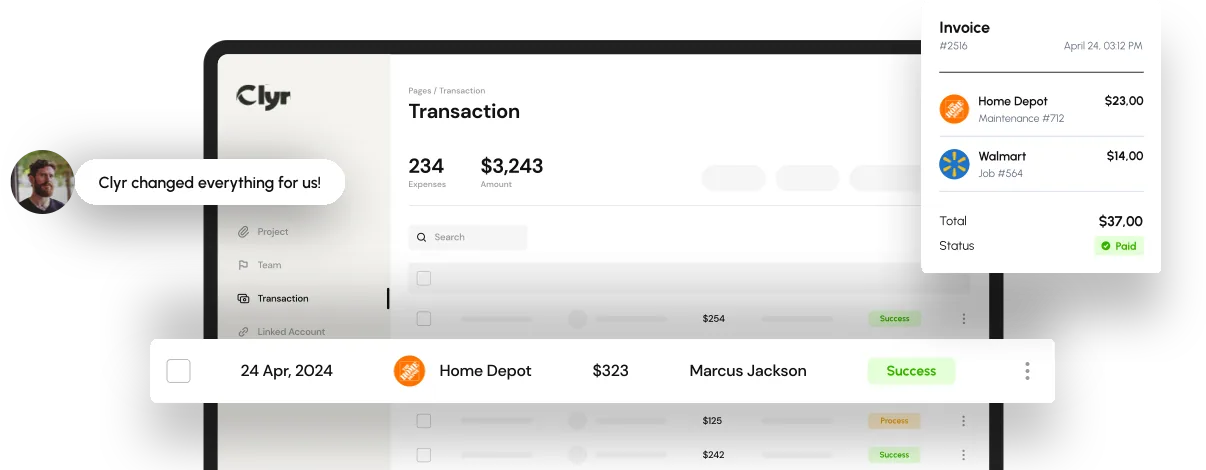
Field teams generate spend at unpredictable times and locations, which is exactly the scenario manual expense reports handle worst. A crew member with a mobile capture tool photographs a receipt on site and the transaction is coded to the job before the truck leaves the parking lot. That is the practical case Clyr is built around: real-time card and receipt capture paired with automatic coding, so a field team's spend is already sorted by the time it reaches the office, and it syncs directly with QuickBooks so nobody re-enters it by hand.
Office-based teams see a smaller but real gain too. Ten people submitting expense reports once a month is manageable in a spreadsheet. Fifty people across three departments is not, and that is usually the point where a company starts looking at automated expense management instead of adding another bookkeeper.
Common Mistakes When Automating Expense Management
Most failed automation projects share the same handful of mistakes, and each one quietly pushes the manual work right back onto someone's plate.
| Mistake | Result |
| Choosing software with no direct accounting sync | Someone still re-keys every transaction into the ledger |
| Skipping mobile capture for field staff | Receipts still pile up until month-end |
| Leaving coding rules generic | A bookkeeper has to fix miscoded transactions anyway |
| Ignoring approval routing | Reports sit unapproved for weeks |
The common thread is workflow, not features. A tool with a long feature list that does not match how your team actually spends money will get worked around within a few weeks, and the spreadsheet quietly comes back.
Choosing Expense Management Automation Software
The right expense management automation fits your workflow first and your feature checklist second. Start with how your team actually spends: card purchases in the field, reimbursable mileage, recurring vendor bills, or some mix of all three, and work backward to the capabilities that solve that specific pattern.
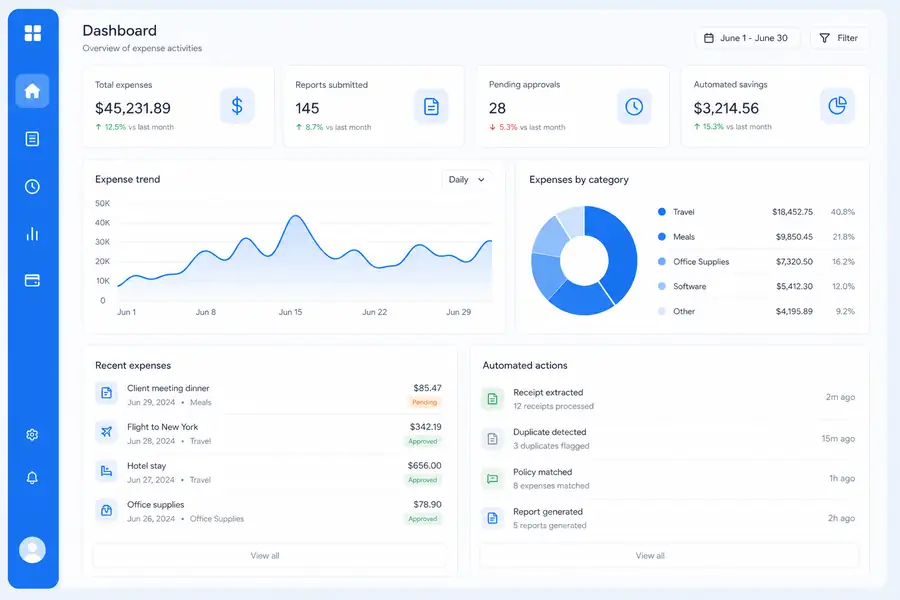
Three questions narrow the field fast. Does it sync directly with your accounting system, or does someone still export and import files? Can field staff capture spend from a phone in seconds, or does it require a desktop session? And does coding happen automatically, or does a bookkeeper still clean it up after the fact? A platform like Clyr's expense management software is built around answering yes to all three, with real-time capture and QuickBooks sync doing the coding and matching work that used to take a person hours each week.
If you want to see how that looks against your own workflow, you can book a demo and walk through it with your actual card and receipt setup rather than a generic pitch.
FAQs
What is the difference between expense management automation and a basic expense tracker?
A basic tracker mainly logs and stores receipts for later reporting, while expense management automation captures, codes, routes for approval, and syncs the transaction to your accounting system without manual entry at any step. The difference shows up at month-end: a tracker still needs someone to review and code everything, while automation has already done it.
Does expense management automation work for employee reimbursements as well as company cards?
Yes. Most platforms handle both, applying the same capture and coding rules whether the spend came from a company card or an employee's own card that gets reimbursed later.
How long does it take to set up automated expense management?
Basic setup, including connecting your accounting system and issuing cards or invites to your team, typically takes a few days to a couple of weeks depending on team size and how many custom coding rules you need. Most of that time goes into defining coding rules for jobs, properties, or cost centers rather than the software connection itself.
Can expense management automation replace my bookkeeper?
No, it changes what a bookkeeper spends time on rather than removing the role. Instead of re-entering and coding transactions by hand, the bookkeeper reviews exceptions, checks coding rules, and closes the books faster because most transactions arrive already matched and categorized.